
Skip to navigation

Permissions and approvals

What you allow when you connect, how Toden asks before every change, and how to disconnect.

What you allow when you connect

When your AI app connects, it opens the Toden console. Sign in if you need to, then on the consent screen:

1

Check the app

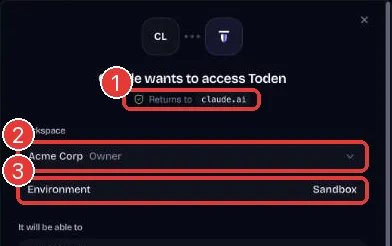
The screen shows the app’s name and where Toden will send you back to. For apps that publish their details, it also shows the website that vouches for them. If you did not start this connection, choose Deny.

2

Choose one organisation and one environment

A connection only ever works in the workspace you pick here. AI apps need a verified business in every environment, Sandbox included: until your business verification is approved, the consent screen refuses the connection with kyb_required_for_ai_apps. Choose Sandbox to work with test data or Production for live data. To work in both environments, connect twice, once for each, or disconnect and connect again.
3

Choose the permissions

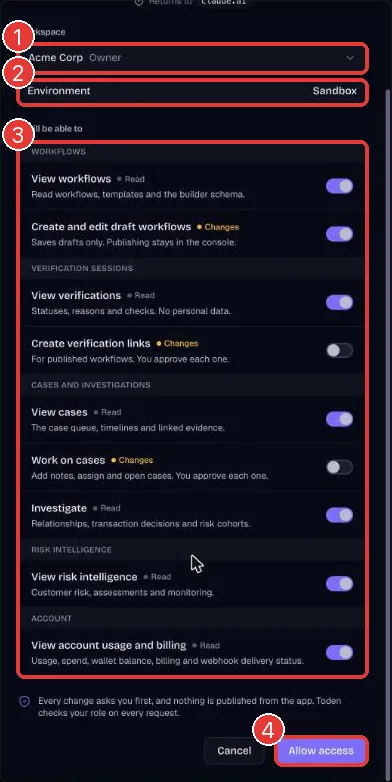
Only the permissions your role has are offered. Read permissions start on; permissions that change data start off until you switch them on. Then choose Allow access.

The top of the Toden consent screen
The top of the Toden consent screen. 1: the app's return address (here, claude.ai). 2: the workspace. 3: the environment.
The Toden consent screen
The Toden consent screen. 1: workspace. 2: environment. 3: the permissions, grouped by area; Read permissions start on and Changes permissions start off. 4: Allow access.
PermissionWhat it allowsWhat the AI app may receiveRole permission needed
workflows.read: View workflowsRead workflows, templates and the builder schema.Workflow settings, decision rules and templates. No personal data.workflows:read
workflows.write: Create and edit draft workflowsSaves drafts only. Publishing stays in the console.Whether a draft was saved, and its link.workflows:manage
workflows.publish.write: Publish workflowsMakes a draft live in the chosen environment. You approve each publish.Whether the workflow was published, its new version and the publish warning codes.workflows:manage
verifications.read: View verification outcomesStatuses, failure reasons, failed checks and explanations. No personal data.Verification references, statuses, reason codes, check names, workflow, country and dates. Never names, ID numbers, documents or selfies.verifications:read
sessions.read: View verificationsStatuses, reasons and checks. No personal data. Includes verifications.read. Kept for existing connections.The same as View verification outcomes.verifications:read
sessions.write: Create verification linksFor published workflows. You approve each one.The new verification link and when it expires.sessions:create
sessions.lifecycle.write: Expire verification linksStop a link that has not been used yet. You approve each one.Whether the link was expired, and its session id.sessions:expire
cases.read: View casesThe case queue, timelines and linked evidence. Includes alerts.read.Case status, priority, timeline entries and evidence references. Never notes or names.cases:read
alerts.read: View monitoring alertsWhy an alert fired and how it was resolved.The rules that fired with their recorded scores, the resolution and the linked case. Never names or notes.alerts:read
cases.write: Work on casesAdd notes, assign and open cases. You approve each one.Whether the change was saved, and the case id.cases:manage
cases.lifecycle.write: Move cases through reviewStart review, escalate, resolve, close, reopen or dispose a case. You approve each one.Whether the case moved, its new status and the case id.cases:manage
investigations.read: InvestigateRelationships, transaction decisions and risk cohorts. Includes verifications.read, duplicates.read, transactions.read.Links between customers as evidence, transaction decisions, risk cohorts, duplicate matches and verification explanations. Never names or ID numbers.identity:read
customers.pii.read: View customer profilesNames and dates of birth of your customers are shared with the AI app.Full name, date of birth, nationality, masked email and phone, city and country, latest verification results, risk level and onboarding decision. Never ID numbers, documents, selfies or biometrics.identity:read
duplicates.read: View duplicate and linked matchesSimilar faces and shared devices behind a verification.Match counts, similarity scores and whether names or documents agree. Never the faces, names or documents themselves.identity:read
risk.read: View risk intelligenceCustomer risk, assessments and monitoring. Includes aml.read.Risk scores and their basis, assessments, monitoring set-up and AML screening outcomes. Never watchlist names or identifiers.risk_assessments:read
aml.read: View AML screeningSanctions, PEP and adverse media outcomes and reviews.Match scores, match types, list names and reviewer decisions. Never watchlist names, dates of birth or identifiers.screening:read
transactions.read: View transaction decisionsFraud and Travel Rule decisions on assessed transactions.The decision, risk level, triggered rules and Travel Rule status. Never wallet addresses or counterparties.fraud_prevention:read
alerts.write: Triage monitoring alertsResolve or dismiss open alerts with an outcome. You approve each one.Whether the alert was resolved or dismissed, and its id.alerts:manage
lists.write: Add to blocklistsAdds what a verification holds to your blocklists. Never faces. You approve each one.Which lists were added to. Never the ID numbers, addresses or contact details themselves.identity:manage
lists.values.write: Add wallet addresses and countries to listsAdd wallet addresses and countries to your lists, including a wallet address taken from a verification. You approve each one.Which list was added to, and whether the value was already on it. Never the wallet address itself.identity:manage
rules.write: Create draft fraud rulesSaves drafts only. Publishing stays in the console. You approve each one.Whether the draft was saved, and its rule and version ids.fraud_prevention:manage
aml.write: Decide AML screening matchesClear a potential match as a false positive or confirm it. You approve each one.Whether the decision was saved, and the screening status. Never watchlist names or identifiers.screening:manage
account.read: View account usage and billingUsage, spend, wallet balance, billing and webhook delivery status.Totals in USD, balances and webhook health. Never card details, secrets or webhook URLs.billing:read
webhooks.write: Retry webhook deliveriesRetry, resend or replay one delivery at a time. You approve each one.Whether the delivery was queued, and its id.webhooks:retry
audit.read: View the audit logWho did what in your organisation, and when.Action names, user ids, record ids and times. Never summaries, names, emails or IP addresses.audit_logs:read
developer.read: View API request logsAPI requests from the last 7 days.Method, route template, status, API key id and request id. Never request bodies, headers or URLs.api_logs:read
analytics.read: View analyticsVerification and monitoring totals and monthly report summaries.Counts, rates, reason codes, countries and workflow names. Never individual records.analytics:read
team.read: View your teamMembers, roles and pending invites.Member ids, roles, status and last activity, and counts. Never names or email addresses.team:read

A permission is the most the connection may do. A broader permission includes the narrower ones listed with it, so a connection made before a narrower permission existed keeps working. Every call also checks your role at that moment, so if an admin removes a permission from your role, the connection loses it on its next call. The tool reference shows which tool needs which permission.

Start with the read permissions. Add workflows.write, sessions.write or cases.write when you want the app to make changes, and connect to Sandbox first while you try it out.

Approval prompts before any change

Every tool that changes data asks you, not the AI model, before it saves anything. The question appears in your AI app and spells out what will happen, built from the actual change rather than the model’s description of it, for example:

Save a new draft “Lending onboarding” in Acme Ltd (Sandbox)?

Countries: Ghana (ghana-card)

It stays a draft: nothing is published or run until someone publishes it in the Toden console.

  • Approve saves it. Decline, Cancel or closing the prompt saves nothing.
  • Drafts, and publishing only with your answer. Workflow changes are saved as drafts. Publishing needs the separate workflows.publish.write permission and runs the console’s own checks; the question names the workflow and environment and shows what changes from the live version, the publish warnings and the price per verification. Only your answer in the prompt approves it: an app that cannot show the prompt cannot publish. Production publishing needs a verified business. Deleting and archiving have no tool.
  • Customer profiles. customers.pii.read shares a customer’s name, date of birth and nationality with the AI app, with masked email and phone and only the city and country of the address. It never shares ID numbers, documents, selfies or biometrics, and starts off on the consent screen.
  • Case notes are permanent once saved, so the prompt shows the exact text. Resolving or closing a case with a decision stays in the console.
  • A verification link is returned to you, never sent to anyone. Production verifications are charged when they complete, as they are from the API.
  • Apps that cannot show the prompt. If your app cannot show approval prompts, or shows one but never returns your answer, Toden saves nothing. The model then has to show you exactly what it will save and get your yes in the chat before trying again. Toden can also be set to refuse changes from any app that cannot show approval prompts.

Never treat a change as made unless the tool’s answer says it was saved. Every change made from an AI app is in your organisation’s audit log, marked as coming from an AI app, with how it was approved.

Disconnect an app

1

Open Settings > MCP

In the Toden console, open Settings > MCP (in the Personal section). It lists every AI app you have connected, in every workspace, with what each may do and when it was last used.

2

Choose Disconnect

Choose Disconnect next to the app. The connection ends at once: the app’s tokens stop working on its next call.

Settings > MCP in the Toden console
Settings > MCP in the Toden console. 1: a connected app with its workspace, permissions and when it was last used. 2: Disconnect.

Members with the intelligence:manage permission also see, and can disconnect, everyone’s connections to the current workspace.

Removing the connector in your AI app stops the app using it. To be sure the access itself has ended, disconnect it in Settings > MCP as well. Resetting your password or two-factor authentication ends every connection you have.